💾 How to Fix “Insufficient Storage Available” Error on Android
🧭 Introduction
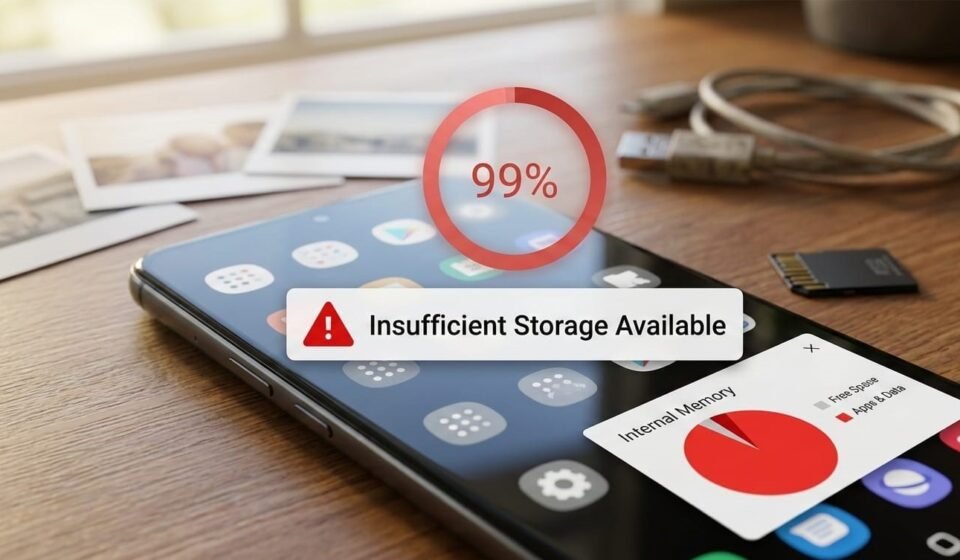
One of the most common Android problems is running out of storage. Even when your phone shows that there’s free space available, trying to install an app may fail with this message:
This error can be frustrating because it often happens even on phones with plenty of visible space.
In this complete 2026 guide, you will learn:
- 🔹 What this error actually means
- 🔹 Why it occurs even when storage seems sufficient
- 🔹 Step-by-step solutions
- 🔹 Advanced fixes for stubborn cases
- 🔹 How to prevent storage errors in the future
Let’s start by understanding the problem.
🔎 What Does “Insufficient Storage Available” Mean?
This message appears when Android detects that your device does not have enough free memory to complete an operation, usually:
- Installing new apps
- Updating existing apps
- Downloading large files
Android may require additional temporary space for installation or processing, so sometimes even 500MB free may not be enough for a 200MB app.
📌 Common Causes of Storage Errors
Understanding why this happens makes it easier to fix.
1️⃣ Low Internal Storage
Most apps are installed on internal storage. If the storage is almost full, Android cannot allocate space for new apps or temporary files.
2️⃣ Cache Buildup
Android and apps store temporary cache data that can accumulate over time:
- 🔹 Social media apps
- 🔹 Streaming apps
- 🔹 Messaging apps
Cache can occupy hundreds of MBs or even GBs, reducing available space.
3️⃣ Hidden System Storage
Android reserves some storage for:
- OS updates
- System apps
- Logs and temporary files
Sometimes this reserved space makes it seem like storage is sufficient, but the system cannot use it for installations.
4️⃣ Large Media Files
Videos, photos, music, and downloads can quickly consume storage space. Even if a few MBs are left, large app installations can fail.
5️⃣ SD Card Installation Problems
If your default install location is an SD card, corruption or speed issues can prevent Android from using it for installations.
🛠 Step-by-Step Solutions
Here’s how to fix this problem safely.
🔄 Fix 1: Restart Your Device
Restarting:
- ✔ Clears temporary system glitches
- ✔ Refreshes storage allocation
- ✔ Frees cached memory
After restart, try installing again.
🧹 Fix 2: Clear App Cache
To clear cached data:
- Go to Settings → Apps
- Select large apps (e.g., social media, streaming)
- Tap Storage → Clear Cache
This can free hundreds of MBs instantly.
📱 Fix 3: Delete Unused Apps
Check for apps you rarely use:
- Go to Settings → Apps
- Identify large or unused apps
- Uninstall unnecessary ones
This immediately frees internal storage.
💾 Fix 4: Remove Large Media Files
Videos, photos, and music occupy significant space:
- Backup important files to cloud storage or PC
- Delete old or unnecessary files
- Clear downloaded content from streaming apps
This can free gigabytes if needed.
⚙️ Fix 5: Move Apps to SD Card
If your device supports it:
- Go to Settings → Apps → Storage → Move to SD Card
- This moves some apps from internal to external storage
⚠ Note: Not all apps can be moved.
🔄 Fix 6: Clear Downloads Folder
The Downloads folder often stores:
- PDFs
- APKs
- Media files
Open your Downloads app and remove unneeded files.
🛡 Fix 7: Clear System Cache Partition
This is a deeper fix:
- Power off your device
- Boot into Recovery Mode (varies by device)
- Select Wipe Cache Partition
- Restart device
This clears temporary system files safely without deleting personal data.
📦 Fix 8: Use Storage Management Tools
Android includes Storage Management tools:
- Open Settings → Storage
- Tap Free Up Space / Smart Storage
- Follow recommendations to remove unused files
This is safer than manual deletion.
🔬 Advanced Troubleshooting
⚙️ Fix 9: Check for Hidden Large Files
Use file manager apps to scan storage for:
- Hidden log files
- Large temporary folders
- Duplicate media
Deleting or backing up these files frees additional space.
💾 Fix 10: Factory Reset (Last Resort)
If storage errors persist:
- Backup all data
- Perform Factory Reset
- Reinstall apps gradually
⚠ Only recommended if all other methods fail.
🧠 Why This Error Happens Even With Free Space
Android requires additional temporary storage when installing apps:
- Temporary APK extraction
- Data decompression
- Cache allocation
If storage is fragmented or reserved for system, installation can fail despite visible free space.
📊 Difference Between Related Errors
- App Not Installed: Signature conflict or storage issue
- Parse Error: File structure or compatibility problem
- Insufficient Storage: Not enough free or usable memory
Understanding these differences helps troubleshoot faster.
🚫 What NOT to Do
- ❌ Force-install apps on full storage
- ❌ Use untrusted cleaning apps that remove important files
- ❌ Ignore storage warnings
Safe storage management ensures device longevity.
🛡 How to Prevent Storage Issues in the Future
- ✔ Regularly delete unused apps
- ✔ Clear cache every few weeks
- ✔ Move media files to cloud storage
- ✔ Monitor storage using built-in tools
- ✔ Avoid keeping unnecessary downloads
Proactive storage management reduces errors significantly.
👥 Who Faces This Error Most Often?
- Users with older devices (low internal storage)
- Heavy media users
- Users installing large games or apps
- Devices with fragmented storage
Newer flagship phones with 128GB+ rarely encounter this problem.
🏁 Final Thoughts
The “Insufficient Storage Available” error is common, but it does not mean your phone is broken.
It usually happens because of:
- Accumulated cache
- Large media files
- Low internal storage
- SD card issues
By following the structured fixes in this guide, you can free storage and install apps safely.
For educational platforms like apkbro.site, guides like this help users troubleshoot efficiently and build authority in Android maintenance.