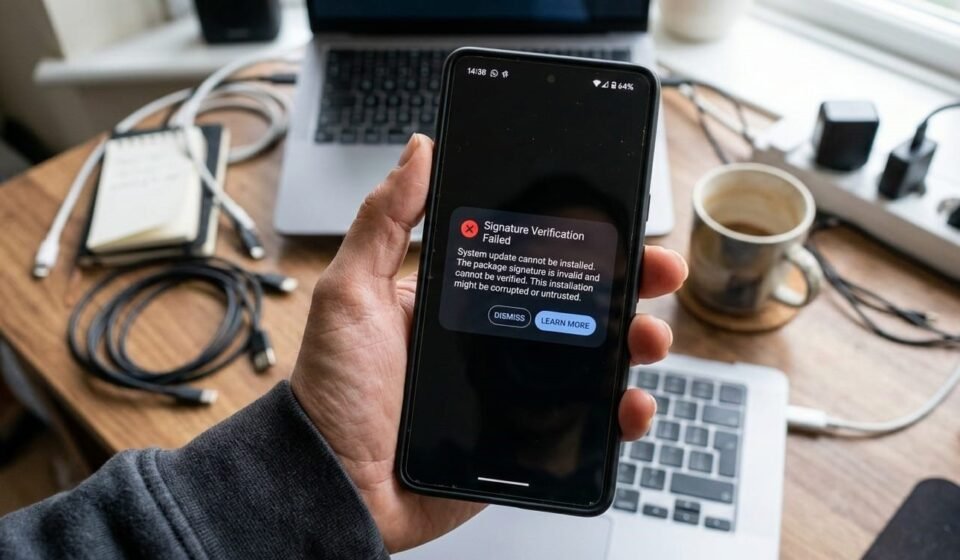
🔐 How to Fix “Signature Verification Failed” Error on Android
🧭 Introduction
While installing an APK file on Android, you may encounter an error that says:
This error prevents the app from installing and usually appears when installing:
- Modified APKs
- Updated versions from different sources
- Re-signed apps
- Downgraded versions
In this complete 2026 guide, you’ll learn:
- 🔹 What Android app signatures are
- 🔹 Why this error happens
- 🔹 Safe ways to fix it
- 🔹 Advanced troubleshooting steps
- 🔹 How to avoid signature errors in the future
Let’s start with the basics.
🧠 What Is an App Signature?
Every Android app is digitally signed by its developer.
Think of it like a digital fingerprint that:
- ✔ Verifies the app’s authenticity
- ✔ Ensures updates come from the same developer
- ✔ Prevents tampering
- ✔ Protects user security
Android uses this signature to verify:
- Whether an update is legitimate
- Whether an app has been modified
- Whether the app is safe to install over an existing version
If the signature doesn’t match, installation fails.
⚠ Why “Signature Verification Failed” Happens
Here are the most common reasons.
1️⃣ Installing Over a Different Signed Version
If you already have an app installed and try installing:
- A modified version
- A version from another source
- A re-signed build
Android detects signature mismatch and blocks installation.
2️⃣ Downgrading the App Version
Android does not allow installing an older version over a newer one unless:
- The signatures match
- The existing app is removed first
3️⃣ Installing Modified (Mod) APKs
Modified apps are often:
- Re-signed by third parties
- Edited versions of original apps
These versions almost always have different digital signatures.
4️⃣ Corrupted APK File
If the APK download was interrupted:
- File may be incomplete
- Signature verification fails
5️⃣ Cloned or Repacked Apps
Some APKs are repacked for redistribution, changing:
- Signature certificate
- Security hash
Android blocks such installations for safety.
🛠 Step-by-Step Fixes
Let’s fix this safely.
🔄 Fix 1: Uninstall the Existing App
Most common solution:
- Go to Settings → Apps
- Select the app
- Tap Uninstall
- Install the new APK again
⚠ Warning: This deletes app data unless backed up.
💾 Fix 2: Backup App Data Before Uninstalling
If you want to keep app data:
- Use built-in cloud backup (if available)
- Sync account inside the app
- Ensure login credentials are saved
Then uninstall and reinstall.
📥 Fix 3: Download APK from Same Source
If you originally installed the app from:
- Official app store
- Developer’s website
Make sure updates are from the same source, so the signature matches.
🧹 Fix 4: Clear Package Installer Cache
Sometimes the installer itself glitches.
Steps:
- Go to Settings → Apps → Show System Apps
- Find Package Installer
- Tap Storage → Clear Cache
Try installing again.
🔍 Fix 5: Check for Split APK or App Bundles
Some apps come as:
- Split APK files
- App bundles
If not installed correctly, signature verification may fail.
Ensure:
- All required APK parts are installed
- Files are complete
⚙️ Fix 6: Remove Previous Mod Versions
If you previously installed a modified version:
- Uninstall it completely
- Restart device
- Install the clean version
Modified apps often conflict with official builds.
🔄 Fix 7: Restart Your Device
Restarting:
- Clears temporary installer errors
- Refreshes system services
- Resolves minor glitches
Simple but effective.
🔬 Advanced Troubleshooting
🛡 Fix 8: Use Safe Mode
Safe Mode disables third-party apps.
Steps:
- Hold Power button
- Tap and hold Power Off
- Select Safe Mode
- Try installation
If it works, another app is interfering.
💻 Fix 9: Use ADB Installation (Advanced Users)
For advanced troubleshooting, developers use ADB tools to install APKs.
⚠ This is technical and not recommended for beginners.
⚠ Requires developer options enabled.
Only use if you understand Android debugging tools.
🧨 Fix 10: Factory Reset (Last Resort)
If signature errors persist for multiple apps:
- Backup your data
- Perform factory reset
- Install apps fresh
This resolves deep system corruption.
🧩 Understanding Signature Security
Android’s signature system prevents:
- Malware installation
- App tampering
- Unauthorized updates
- Data theft
When signature verification fails, it is usually a protection mechanism, not a device problem.
📊 Difference Between Related Errors
- App Not Installed: Storage or compatibility issue
- Parse Error: Invalid or corrupted APK
- Signature Verification Failed: Signature mismatch
Understanding the difference saves troubleshooting time.
🚫 What NOT to Do
- ❌ Do not disable system security features
- ❌ Do not root your device just to bypass signature checks
- ❌ Do not use unsafe patching tools
- ❌ Do not ignore security warnings
These protections exist for user safety.
🛡 How to Prevent Signature Errors
Follow these best practices:
- ✔ Install updates from same source
- ✔ Avoid mixing official and modified versions
- ✔ Backup data before switching versions
- ✔ Do not downgrade apps unnecessarily
- ✔ Keep system updated
Consistency prevents signature conflicts.
👥 Who Faces This Error Most?
- Users installing modded APKs
- Users switching between official and unofficial versions
- Users downgrading apps
- Developers testing different builds
Regular users installing apps normally rarely see this error.
🧠 Why Android Is Strict About Signatures
Android uses digital signatures to:
- Protect user data
- Maintain app integrity
- Prevent malicious replacements
- Ensure update authenticity
Without signature verification, apps could be silently replaced by harmful versions.
🏁 Final Thoughts
The “Signature Verification Failed” error is not a bug — it is a security feature.
It usually occurs because:
- An app with a different signature is already installed
- You are downgrading versions
- The APK file is modified or corrupted
Most of the time, simply uninstalling the previous version solves the issue.
By understanding Android’s signature system, users can install apps safely and avoid unnecessary frustration.
For an educational platform like apkbro.site, guides like this build trust and authority in Android troubleshooting.