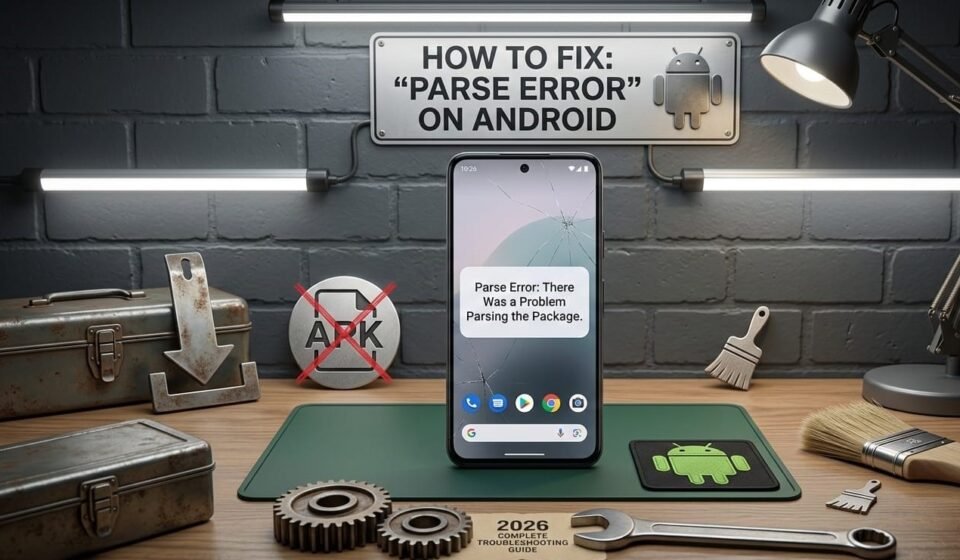
📦 How to Fix “Parse Error: There Was a Problem Parsing the Package” on Android
🧭 Introduction
If you’ve ever tried installing an application on your Android device and suddenly saw the message:
you probably felt confused.
What does “parsing” even mean?
Is your phone broken?
Is the file dangerous?
Don’t worry — this is one of the most common Android installation errors, and in most cases, it is completely fixable.
In this complete 2026 guide, you will learn:
- 🔹 What a parse error actually means
- 🔹 Why Android shows this message
- 🔹 The most common causes
- 🔹 Step-by-step fixes
- 🔹 Advanced technical solutions
- 🔹 Prevention tips
Let’s start with the basics.
🔎 What Does “Parse Error” Mean?
The word “parse” simply means:
When Android installs an application, it first reads the app’s internal file structure.
If the system cannot properly read or understand the file, it shows:
This means:
- ❌ The file structure is invalid
- ❌ The app is incompatible
- ❌ The file is corrupted
- ❌ Required components are missing
The installation stops immediately.
📱 When Does Parse Error Usually Appear?
This error typically appears:
- 📦 During manual installation
- 📂 When installing older app versions
- ⚙ When Android version is outdated
- 🧩 When split APK files are incomplete
Unlike “App Not Installed,” parse error usually happens before installation begins.
🔍 Main Causes of Parse Error
Let’s understand the most common reasons.
1️⃣ Incompatible Android Version
Every Android application requires a minimum Android version (called Minimum SDK).
For example:
- The app requires Android 11
- Your device runs Android 9
Android cannot interpret newer system instructions.
Result:
This is one of the most common causes.
2️⃣ Corrupted or Incomplete File
If the installation file was:
- Interrupted during download
- Incompletely transferred
- Damaged during copying
Android cannot read its internal structure properly.
Even a small missing file component can trigger parsing failure.
3️⃣ Disabled “Install Unknown Apps” Permission
If installing manually, Android requires permission to install apps outside official stores.
If this permission is disabled:
- Installation may not proceed
- Parsing may fail early
Always check this setting before troubleshooting deeper.
4️⃣ Incorrectly Modified Files
If an app’s internal structure was modified improperly, Android will detect inconsistencies.
Android checks:
- 📄 Manifest file
- 🔐 Digital signature
- 📦 Resource structure
If something is broken, parsing fails.
5️⃣ Split APK or App Bundle Issues
Modern Android apps sometimes use:
- 🧩 Split APK format
- 📦 Multiple configuration files
If you try installing only one part of a multi-part package, Android cannot process it.
Result:
6️⃣ Low Internal Storage
Although rare, very low storage can:
- Prevent temporary file creation
- Interrupt parsing process
Always maintain sufficient free storage.
🛠 Step-by-Step Fixes
Now let’s fix the issue properly.
🔄 Fix 1: Restart Your Device
Restarting can:
- ✔ Clear temporary glitches
- ✔ Reset system services
- ✔ Refresh memory allocation
After restart, try installing again.
📱 Fix 2: Check Your Android Version
To check:
- Open Settings
- Tap About Phone
- Check Android Version
Compare your Android version with the app’s minimum requirement.
If your version is lower:
- Update Android (if possible)
- Or use a compatible version of the app
📦 Fix 3: Re-Download the File
If the file is corrupted:
- Delete the current file
- Download again completely
- Avoid interrupting the download
Incomplete downloads are a major cause of parse errors.
🔐 Fix 4: Enable Install Unknown Apps
To enable:
- Go to Settings
- Tap Security or Privacy
- Open Install Unknown Apps
- Allow permission for your browser or file manager
Without this permission, installation may fail.
🧹 Fix 5: Clear Package Installer Cache
Steps:
- Open Settings
- Tap Apps
- Find Package Installer
- Open Storage
- Tap Clear Cache
This resets temporary installation data.
🔬 Advanced Troubleshooting Methods
If the problem continues, try deeper solutions.
⚙️ Fix 6: Update Android System Software
Older Android systems may not support modern app packaging formats.
To update:
- Open Settings
- Go to Software Update
- Tap Check for Updates
Installing updates improves compatibility.
💾 Fix 7: Free Up Storage Space
Try to maintain at least:
Delete:
- Unused apps
- Large videos
- Duplicate photos
- Unnecessary downloads
More free space helps system processes.
🛡 Fix 8: Reset App Preferences
This resets:
- Disabled apps
- Permission restrictions
- Background limitations
Steps:
- Go to Settings
- Tap Apps
- Tap three-dot menu
- Select Reset App Preferences
This does NOT delete personal data.
📂 Fix 9: Ensure Correct APK Type
Some apps have:
- ARM64 version
- ARMv7 version
- x86 version
Installing the wrong architecture version may cause parsing failure.
Make sure the file matches your device architecture.
🧠 Technical Explanation (Behind the Scenes)
When you tap install, Android performs these steps:
- Reads AndroidManifest.xml
- Checks minimum SDK requirement
- Verifies digital signature
- Validates file integrity
- Allocates installation space
If any of these steps fail, Android blocks installation to protect the system.
This is not a bug — it is a security mechanism.
📊 Parse Error vs App Not Installed
Let’s clearly understand the difference.
📦 Parse Error
- Happens before installation begins
- Usually compatibility or corrupted file
📱 App Not Installed
- Happens during installation
- Usually storage or signature conflict
Understanding this difference helps you choose the right fix.
🚫 What NOT to Do
When facing parse error, avoid:
- ❌ Installing random multiple versions
- ❌ Disabling all security features permanently
- ❌ Modifying system files
- ❌ Repeated forced installations
These actions can create bigger system issues.
🛡 How to Prevent Parse Error in the Future
Follow these best practices:
- ✔ Keep Android updated
- ✔ Maintain sufficient storage
- ✔ Avoid incomplete downloads
- ✔ Check compatibility before installing
- ✔ Use correct architecture versions
Prevention saves time and frustration.
📱 Does Parse Error Damage Your Phone?
No.
It only prevents installation.
It does NOT:
- Harm hardware
- Corrupt Android permanently
- Slow your phone permanently
It is simply Android protecting itself.
👥 Who Commonly Faces Parse Errors?
- 📱 Users with older Android versions
- 🧪 Advanced users installing manually
- 📂 Users installing older app builds
- 💾 Devices with low storage
Regular users installing apps normally rarely see this issue.
🏁 Final Thoughts
The “Parse Error: There Was a Problem Parsing the Package” message may sound technical, but it is usually caused by:
- Incompatible Android version
- Corrupted file
- Missing installation permission
- Incorrect app architecture
By following the structured steps in this guide, most users can solve the issue quickly and safely.
For a knowledge-based Android platform like apkbro.site, detailed troubleshooting guides like this build strong authority and trust.