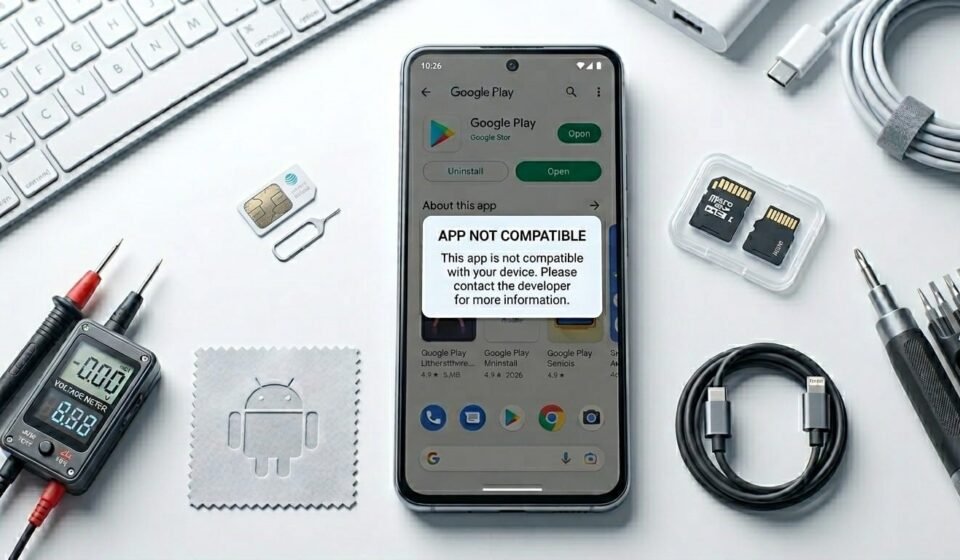
🚫 How to Fix “App Not Compatible With Your Device” Error on Android
🧭 Introduction
Have you ever tried installing an app and seen this message?
It can be confusing and frustrating. You may wonder:
- Is my phone too old?
- Is something wrong with my settings?
- Can I fix this problem?
The good news is that in many cases, this issue can be resolved — or at least clearly understood.
In this complete 2026 guide, you will learn:
- 🔹 What “App Not Compatible” really means
- 🔹 Why Android shows this message
- 🔹 The most common causes
- 🔹 Step-by-step solutions
- 🔹 Technical reasons behind compatibility checks
- 🔹 How to prevent this issue in the future
Let’s start from the basics.
🔎 What Does “App Not Compatible With Your Device” Mean?
This message appears when Android determines that your device does not meet the app’s requirements.
It could be related to:
- 📱 Android version
- 🧠 Processor architecture
- 📺 Screen resolution
- 🌍 Region restrictions
- 🔐 Hardware features
In simple words:
Android blocks installation to prevent crashes and performance issues.
📌 Main Reasons Why This Error Happens
Let’s break down the most common causes.
1️⃣ Outdated Android Version
Every Android app has a minimum SDK requirement.
For example:
- The app requires Android 12
- Your phone runs Android 9
Your device simply cannot run that app version.
This is the most common reason for compatibility errors.
2️⃣ Processor (CPU) Architecture Mismatch
Android devices use different processor architectures such as:
- 🔹 ARM64
- 🔹 ARMv7
- 🔹 x86
If an app is built only for ARM64 devices, and your device uses ARMv7, it will not install.
Android checks compatibility before allowing installation.
3️⃣ Insufficient Hardware Capabilities
Some apps require specific hardware features like:
- 📷 Advanced camera modules
- 🎮 High-performance GPU
- 📡 NFC support
- 🧭 Gyroscope sensors
If your device lacks required hardware, Android blocks installation.
4️⃣ Screen Size or DPI Restrictions
Certain apps are optimized only for:
- 📺 Tablets
- 📱 Large-screen phones
- 🖥 Specific display densities
If your screen resolution does not match the supported range, compatibility error may appear.
5️⃣ Region Restrictions
Some applications are limited to specific countries.
If the app is not officially available in your region, you may see a compatibility message.
This is usually controlled by the developer.
6️⃣ Play Store Device Certification Issues
If your device is:
- Not Play Protect certified
- Running unofficial firmware
- Using custom system software
Some apps may appear incompatible.
🛠 Step-by-Step Fixes
Now let’s explore practical solutions.
🔄 Fix 1: Restart Your Device
It may sound simple, but restarting:
- ✔ Refreshes system processes
- ✔ Clears temporary glitches
- ✔ Reconnects Play services
After restart, check again.
⚙️ Fix 2: Update Your Android System
To check for updates:
- Open Settings
- Tap Software Update
- Select Check for Updates
If a newer version is available, install it.
System updates improve compatibility with newer apps.
📱 Fix 3: Check Your Android Version
To check:
- Go to Settings
- Tap About Phone
- View Android Version
If the app requires a higher version, updating the system may solve the issue.
If updates are unavailable, your device may be too old for that app version.
🧹 Fix 4: Clear Play Store Cache
Sometimes the Play Store may display incorrect compatibility information.
To clear cache:
- Open Settings
- Tap Apps
- Select Google Play Store
- Open Storage
- Tap Clear Cache
Restart the device and try again.
🌍 Fix 5: Check Region Settings
Ensure:
- Your Google account region matches your actual location
- Your device language and region settings are correct
Incorrect region settings can affect app availability.
🔬 Advanced Solutions
If basic fixes don’t work, try these advanced methods.
🧠 Fix 6: Check Device Architecture
Your device architecture must match the app build.
Common types:
- ARM64 (modern devices)
- ARMv7 (older devices)
- x86 (rare Android devices)
Installing the wrong architecture version will fail.
Always ensure compatibility before installing.
📦 Fix 7: Try an Older Version of the App
Sometimes newer app updates increase minimum requirements.
If:
- The latest version requires Android 12
- But your device supports only Android 10
An older compatible version may work better.
🛡 Fix 8: Ensure Play Protect Certification
To check certification:
- Open Play Store
- Tap Profile
- Go to Settings
- Scroll to About
If device is not certified, some apps may be restricted.
⚙️ Fix 9: Factory Reset (Last Resort)
If compatibility issues persist due to system corruption:
- Backup important data
- Perform factory reset
⚠ Only use this as a last option.
This resets system configuration completely.
🧠 Why Android Blocks Incompatible Apps
Android checks:
- Minimum SDK requirement
- Target SDK compatibility
- Hardware features
- Screen density
- CPU architecture
If any requirement fails, installation is blocked.
This prevents:
- ❌ App crashes
- ❌ System instability
- ❌ Performance problems
Compatibility restrictions protect user experience.
📊 Difference Between Similar Errors
It’s important to understand the difference.
🚫 App Not Compatible
- Device does not meet requirements
📦 Parse Error
- File structure or compatibility issue
📱 App Not Installed
- Storage or signature conflict
Knowing the difference helps identify the right solution.
📱 Does This Mean Your Phone Is Too Old?
Not always.
Sometimes:
- The app is poorly optimized
- The Play Store shows incorrect compatibility
- Temporary system glitch exists
However, if your Android version is very outdated, some modern apps may not work.
Technology evolves, and newer apps require newer systems.
🚫 What NOT to Do
When facing compatibility errors, avoid:
- ❌ Installing random modified versions
- ❌ Disabling all security protections
- ❌ Changing system files without knowledge
- ❌ Forcing unsupported installations
These actions can cause instability.
🛡 How to Prevent Compatibility Issues
Follow these best practices:
- ✔ Keep Android updated
- ✔ Use certified devices
- ✔ Maintain updated system software
- ✔ Check requirements before installing
- ✔ Avoid outdated hardware
Being proactive reduces frustration.
👥 Who Faces This Error Most Often?
- 📱 Users with older devices
- 🧪 Users installing advanced apps
- 🌍 Users in restricted regions
- ⚙ Devices running outdated Android versions
Newer flagship devices rarely face compatibility errors.
🏁 Final Thoughts
The “App Not Compatible With Your Device” error is not a bug — it is a compatibility safeguard.
It usually happens because of:
- Outdated Android version
- CPU architecture mismatch
- Missing hardware features
- Region restrictions
- Device certification issues
By following the structured solutions in this guide, many users can resolve or clearly understand the issue.
For educational Android platforms like apkbro.site, publishing detailed compatibility guides strengthens authority and builds user trust.