🔐 How to Fix “Blocked by Play Protect” Installation Error on Android
🧭 Introduction
Android devices are designed to be secure, and Google Play Protect is one of the main security layers that protects your phone from harmful apps.
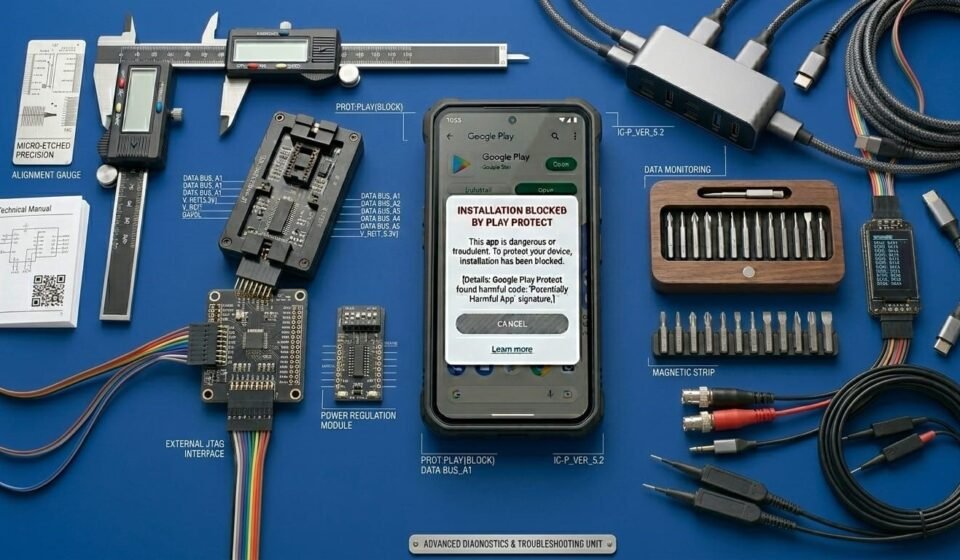
Sometimes, however, it can block legitimate apps, showing this warning:
This can be frustrating, especially when you know the app is safe.
In this complete 2026 guide, you will learn:
- 🔹 What Play Protect is
- 🔹 Why apps get blocked
- 🔹 The difference between real threats and false positives
- 🔹 Step-by-step fixes
- 🔹 Advanced troubleshooting
- 🔹 How to prevent Play Protect from blocking safe apps
Let’s start by understanding what Play Protect really is.
🔎 What Is Play Protect?
Google Play Protect is a built-in security system in Android devices that:
- 🔐 Scans apps in the Play Store
- 🔐 Monitors installed apps for malware
- 🔐 Warns users about potentially harmful apps
Play Protect helps prevent:
- 📡 Data theft
- 🛡 Device corruption
- ⚠ Accidental installation of malicious apps
It is active by default on almost all Android devices.
📌 Why Does Play Protect Block Apps?
Play Protect uses algorithms to detect unsafe or suspicious apps. It may block apps due to:
- Unknown sources: Apps installed manually or outside Google Play may trigger a warning.
- Unverified signatures: If the APK is modified or not signed properly, Play Protect flags it.
- Potential malware: Even a small risk triggers Play Protect to block installation.
- Outdated app version: Older versions sometimes fail new security checks.
- Beta or testing builds: Developer or beta APKs may not meet Play Protect standards.
📊 Difference Between False Positives and Real Threats
Not all Play Protect warnings indicate real danger:
🔹 False Positive
- Occurs when a safe app is flagged
- Often happens with new or uncommon APKs
- Example: apps distributed directly by developers for testing
⚠ Real Threat
- Contains malicious code
- Attempts to access private data
- Can harm your device or accounts
Knowing the difference is key to fixing the issue safely.
🛠 Step-by-Step Fixes for Play Protect Blocking
Here’s how to solve it safely.
🔄 Fix 1: Restart Your Device
Restarting helps because:
- ✔ Clears temporary system errors
- ✔ Resets Play Protect scanning
- ✔ Frees memory for installations
After restarting, try installing the app again.
📱 Fix 2: Ensure the App Is Safe
Before bypassing Play Protect:
- Verify the developer
- Check if the APK is official
- Avoid modified or cracked versions
⚠ Safety first — Play Protect blocks apps for your protection.
🔐 Fix 3: Allow Manual Installation Temporarily
For apps installed outside Play Store:
- Open Settings
- Tap Security / Privacy
- Enable Install Unknown Apps for your browser or file manager
This allows APK installation without removing Play Protect entirely.
🧹 Fix 4: Clear Play Store Cache
Sometimes Play Protect may incorrectly block apps due to cached data.
Steps:
- Go to Settings → Apps → Google Play Store
- Tap Storage → Clear Cache
- Restart device and try installation again
⚙️ Fix 5: Update Play Store and Play Protect
Outdated Play Store or Play Protect versions can cause false blocks.
- Open Play Store → Profile → Settings → About
- Update both Play Store and Play Protect if updates are available
📦 Fix 6: Temporarily Disable Play Protect (Educational Only)
⚠ Only do this temporarily for apps you trust.
Steps:
- Open Play Store → Profile → Play Protect
- Tap Settings → Scan Apps With Play Protect
- Disable scanning
- Install the app
- Re-enable scanning immediately
This ensures your device remains protected.
🔬 Advanced Fixes
If basic fixes don’t work, try deeper solutions.
💾 Fix 7: Check App Compatibility
Play Protect may block apps that are incompatible with your device:
- Check Android version
- Verify CPU architecture
- Ensure screen resolution matches requirements
Installing compatible versions reduces blocks.
🧩 Fix 8: Re-Sign APK (Developer Option)
Some APKs fail signature verification. Developers or advanced users can:
- Re-sign APK using official certificates
- Avoid modified or cracked signatures
⚠ Only recommended for advanced users who understand digital signatures.
📊 Fix 9: Use a Clean Installation Environment
- Uninstall any previous versions of the app
- Clear storage space
- Restart device
- Attempt a fresh installation
This avoids conflicts with older app versions.
🛡 Fix 10: Factory Reset (Last Resort)
If Play Protect keeps blocking apps incorrectly:
- Backup all important data
- Perform factory reset
- Reinstall apps in proper order
⚠ Only use this if all other solutions fail.
🧠 Technical Explanation: How Play Protect Works
- APK Scanning: Checks digital signatures and structure
- Malware Detection: Searches for known harmful patterns
- Behavior Analysis: Monitors background activity
- Cloud Verification: Compares apps with Google database
If any step raises suspicion, the app is blocked to protect your device.
📊 Difference Between Play Protect Warning and Other Installation Errors
- Play Protect Warning: Security-related block, app flagged as unsafe
- App Not Installed: Installation failure due to storage or signature conflicts
- Parse Error: App structure or compatibility issue
Understanding this helps troubleshoot faster.
🚫 What NOT to Do
- ❌ Ignore Play Protect warnings for unknown apps
- ❌ Permanently disable scanning
- ❌ Install unverified APKs
- ❌ Modify system security files
Safe troubleshooting keeps your device protected.
🛡 How to Prevent Play Protect from Blocking Safe Apps
- ✔ Use verified APKs
- ✔ Keep Play Store and Play Protect updated
- ✔ Maintain device compatibility
- ✔ Avoid downloading apps from untrusted sources
- ✔ Re-enable Play Protect immediately after installation
👥 Who Usually Sees This Error?
- Users installing manual APKs
- Beta testers or developers
- Devices running custom firmware
- Devices with unverified Play Store certification
Most regular users installing apps from Play Store rarely encounter this error.
🏁 Final Thoughts
“Blocked by Play Protect” is a security feature designed to protect your Android device from malware and unsafe apps.
Most of the time, the issue occurs because:
- Apps are installed from unknown sources
- APK signature verification fails
- Device compatibility or Play Protect misidentifies the app
By following the step-by-step solutions in this guide, you can safely install apps while keeping Play Protect active.
For educational Android platforms like apkbro.site, publishing guides like this strengthens authority and builds trust among users.