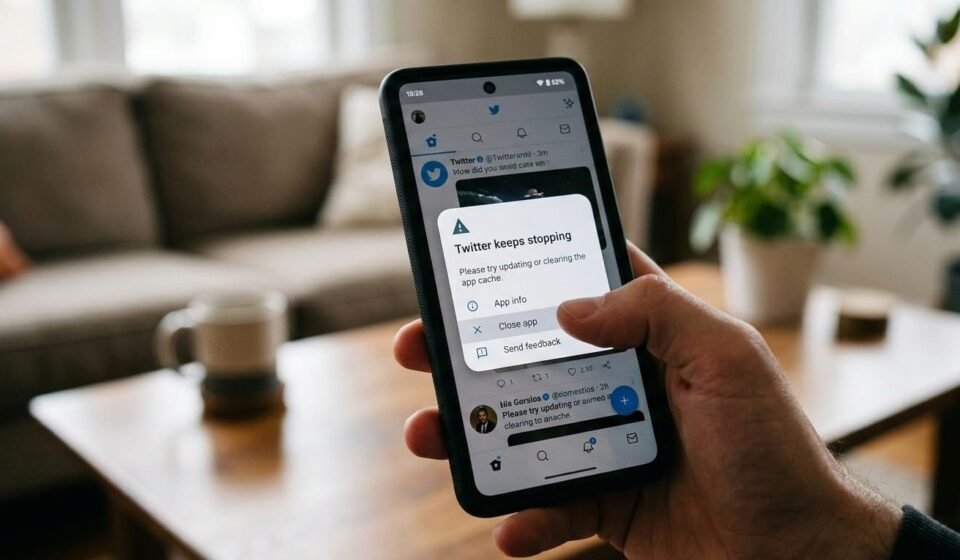
🔄 How to Fix “App Keeps Stopping” Error on Android
🧭 Introduction
One of the most frustrating Android issues is when an app keeps crashing or suddenly stops during use. You may see messages like:
This can happen with both system apps and third-party apps, and it disrupts workflow, gaming, and social apps alike.
In this complete 2026 guide, you will learn:
- 🔹 Why apps keep stopping
- 🔹 Common causes behind app crashes
- 🔹 Step-by-step fixes
- 🔹 Advanced troubleshooting methods
- 🔹 How to prevent recurring crashes in the future
Let’s start by understanding the problem.
🔎 What Does “App Keeps Stopping” Mean?
When an app stops unexpectedly:
- ⚠ Android detected an unexpected error while running the app
- ⚠ The system closes the app to prevent device crashes
- ⚠ Data corruption, software bugs, or low resources may trigger it
Unlike installation errors, this occurs after the app is running.
📌 Common Causes of App Crashes
Understanding why an app keeps stopping helps fix it faster.
1️⃣ Corrupted App Cache or Data
Android stores temporary data for apps to load faster.
If cache or data becomes corrupted:
- 🔹 App may crash
- 🔹 Features may stop working
- 🔹 Repeated crashes occur
2️⃣ Outdated App Version
Older app versions may not be compatible with the latest Android system updates, causing crashes.
3️⃣ Outdated Android System
System-level updates often fix bugs and compatibility issues. Using an old Android version can lead to app instability.
4️⃣ Insufficient Device Storage or RAM
If storage or RAM is low:
- ⚡ Apps cannot run properly
- ⚡ Background processes may conflict
- ⚡ App may stop unexpectedly
5️⃣ Conflicting Apps
Some apps may conflict with others:
- VPN apps
- Security apps
- Custom launchers
These conflicts can cause apps to crash repeatedly.
6️⃣ Permissions Issues
Apps require certain permissions to function. If denied:
- 🔐 Core functions may fail
- ⚠ App may stop unexpectedly
7️⃣ Software Bugs
Sometimes the problem lies in the app itself:
- Poorly optimized apps
- Beta versions
- Apps not tested on all devices
🛠 Step-by-Step Fixes
Here’s how to fix apps that keep stopping.
🔄 Fix 1: Restart Your Device
Restarting:
- ✔ Clears temporary glitches
- ✔ Frees RAM
- ✔ Refreshes background services
After restarting, try opening the app again.
🧹 Fix 2: Clear App Cache
Steps:
- Go to Settings → Apps → [App Name] → Storage → Clear Cache
Clearing cache often resolves minor errors without losing data.
💾 Fix 3: Clear App Data (If Cache Doesn’t Work)
This resets the app to default settings:
- Go to Settings → Apps → [App Name] → Storage → Clear Data
- Warning: This may delete app-specific data, login info, and saved progress
Use when cache clearing alone doesn’t fix crashes.
⚙️ Fix 4: Update the App
Outdated apps are prone to crashes:
- Open Google Play Store
- Go to My Apps & Games → Updates
- Update the app
New versions often include bug fixes and compatibility improvements.
📱 Fix 5: Update Android System
System updates fix bugs and improve app compatibility:
- Open Settings → Software Update
- Check for updates
- Install the latest available version
🛡 Fix 6: Check App Permissions
Apps may crash if critical permissions are denied:
- Open Settings → Apps → [App Name] → Permissions
- Grant all necessary permissions
This ensures the app functions correctly.
🔄 Fix 7: Free Up Storage and RAM
Low storage or RAM can cause apps to stop:
- Delete unused apps
- Clear media files
- Use Storage Management tools in settings
- Restart device
📦 Fix 8: Uninstall and Reinstall the App
Sometimes the app files themselves are corrupted:
- Uninstall the app
- Restart your device
- Reinstall the latest version
This often fixes repeated crashes.
🧩 Fix 9: Check for Conflicting Apps
Identify recently installed apps that may conflict:
- VPNs, security apps, or custom launchers
- Temporarily disable or uninstall
- Test the crashing app again
🔬 Advanced Fixes
⚙️ Fix 10: Use Safe Mode to Test
Safe Mode disables third-party apps:
- Hold Power button → Tap Power off
- Long-press Power Off → Tap Safe Mode
- Open the app
If it works in Safe Mode, another app is causing the crash.
💾 Fix 11: Factory Reset (Last Resort)
If nothing works:
- Backup your data
- Perform Factory Reset
- Reinstall apps gradually
⚠ Only as a last resort, but effective if system-level corruption exists.
🧠 Why Apps Keep Stopping
Android crashes apps when:
- Memory is insufficient
- Permissions are missing
- App files are corrupted
- System updates conflict with the app
- Other apps interfere with functionality
This is a protective mechanism to prevent device instability.
📊 Difference Between Similar Errors
- App Not Installed: Installation failed
- Parse Error: APK file or compatibility problem
- App Keeps Stopping: Runtime error after app launch
🚫 What NOT to Do
- ❌ Ignore repeated crashes
- ❌ Use unsafe cleaning or booster apps
- ❌ Install unverified modified APKs
- ❌ Force apps via unsupported methods
Safe troubleshooting ensures stability.
🛡 How to Prevent “App Keeps Stopping” Errors
- ✔ Regularly update apps and system software
- ✔ Maintain free storage and RAM
- ✔ Avoid installing conflicting apps
- ✔ Grant all necessary permissions
- ✔ Monitor app behavior after updates
👥 Who Faces This Error Most Often?
- Users with older devices
- Devices with low storage or RAM
- Users installing beta or testing apps
- Heavy multitaskers with many background apps
🏁 Final Thoughts
The “App Keeps Stopping” error is common but usually easy to fix with structured troubleshooting.
Most crashes happen due to:
- Corrupted cache or app data
- Outdated apps or Android system
- Conflicting apps or permissions issues
By following the step-by-step fixes, users can restore app stability and improve overall device performance.
Guides like this on apkbro.site help users solve issues safely and position your site as a trusted Android troubleshooting resource.