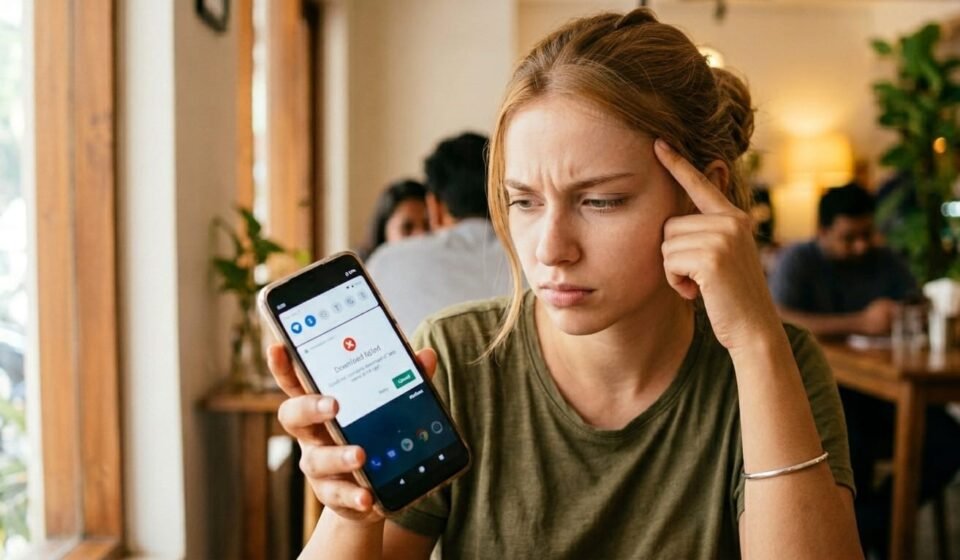
📥 How to Fix “Download Failed” Error on Android
🧭 Introduction
Downloading apps, updates, or files on Android is usually simple. But sometimes you may encounter the frustrating message:
Unlike “Download Pending,” this error means the download started but failed before completion.
This guide will help you understand:
- 🔹 What “Download Failed” really means
- 🔹 The most common causes
- 🔹 Step-by-step fixes
- 🔹 Advanced troubleshooting methods
- 🔹 Prevention tips for future downloads
If you’re running an informational platform like apkbro.site, this is one of the most common Android issues users search for.
Let’s begin.
🔎 What Does “Download Failed” Mean?
When Android shows “Download Failed,” it means:
- 📶 The connection was interrupted
- 💾 Storage check failed
- 🔐 Server verification failed
- ⚠ A system glitch occurred
The download process began but could not complete successfully.
📌 Common Causes of Download Failed Error
Understanding the cause makes fixing it easier.
1️⃣ Unstable Internet Connection
If your connection:
- Drops frequently
- Switches between Wi-Fi and mobile data
- Has low signal strength
The download may fail midway.
2️⃣ Low Storage Space
Even if a download begins:
- Android requires enough storage to complete installation
- Temporary installation files need extra space
If space runs out, the download fails.
3️⃣ Corrupted App Store Cache
Temporary cache corruption may cause:
- Interrupted downloads
- Installation failures
- Incomplete file writing
4️⃣ Background Data Restrictions
If background data is restricted:
- Downloads may stop when screen is locked
- Updates may fail automatically
5️⃣ VPN or Firewall Restrictions
Some VPNs or network firewalls:
- Block download servers
- Interrupt file transfers
- Cause verification failures
6️⃣ Incorrect Date and Time
Server authentication depends on accurate date and time.
Incorrect settings can cause:
- Verification mismatch
- Download authentication errors
7️⃣ Software Glitches
Temporary system bugs may interfere with:
- Download manager
- Package installer
- App store services
🛠 Step-by-Step Fixes
Let’s solve the problem step by step.
🔄 Fix 1: Restart Your Device
Restarting:
- ✔ Clears temporary memory
- ✔ Refreshes network connection
- ✔ Resets system services
After restarting, try downloading again.
📶 Fix 2: Check Internet Stability
Make sure:
- Wi-Fi signal is strong
- Mobile data is active
- Airplane mode is off
You can also:
- Switch between Wi-Fi and mobile data
- Restart router
Stable internet is essential for large downloads.
💾 Fix 3: Free Up Storage Space
Go to:
- Settings → Storage
Ensure at least:
- 1–2 GB free space
Delete:
- Unused apps
- Large videos
- Old downloads
- Cached files
🧹 Fix 4: Clear App Store Cache
Steps:
- Open Settings → Apps → App Store → Storage
- Tap Clear Cache
This removes corrupted temporary files.
⚙️ Fix 5: Clear App Store Data (If Needed)
If cache clearing fails:
- Tap Clear Data
- Reopen the app store
- Sign in again
This resets the app store to default settings.
🔐 Fix 6: Enable Background Data
Check:
- Settings → Apps → App Store → Mobile Data
- Ensure background data is enabled
Downloads may fail if restricted.
⏰ Fix 7: Correct Date and Time
Go to:
- Settings → Date & Time
- Enable Automatic Date & Time
This prevents authentication errors.
🔄 Fix 8: Disable VPN or Proxy
If using VPN:
- Turn it off temporarily
- Try downloading again
Some VPN servers interrupt file transfers.
🔬 Advanced Troubleshooting
If basic solutions don’t work, try these.
🔁 Fix 9: Clear Download Manager Cache
The Download Manager handles file transfers.
Steps:
- Settings → Apps → Show System Apps
- Select Download Manager
- Tap Clear Cache
This resets the downloading service.
👤 Fix 10: Remove and Re-add Google Account
Account sync problems may cause failures.
Steps:
- Go to Settings → Accounts
- Remove Google account
- Restart device
- Add account again
This refreshes authentication.
🛡 Fix 11: Update Android System
Outdated Android versions may cause compatibility issues.
Go to:
- Settings → Software Update
- Install latest available update
💾 Fix 12: Reset App Preferences
This resets:
- Disabled apps
- Default apps
- Background restrictions
Steps:
- Settings → Apps → Reset App Preferences
No personal data is deleted.
🧠 Why Download Failed Happens
Android downloads involve:
- File request to server
- Internet data transfer
- Temporary storage allocation
- Installation verification
If any step fails, the system cancels the download.
Most failures are temporary and easily fixable.
📊 Difference Between Similar Errors
- Download Pending: Waiting to start
- Download Failed: Started but unsuccessful
- App Not Installed: Installation blocked
- Insufficient Storage: Not enough memory
Understanding the difference helps apply the correct fix.
🚫 What NOT to Do
- ❌ Do not repeatedly cancel and restart download
- ❌ Do not install unknown cleaning apps
- ❌ Do not disable system services randomly
- ❌ Do not ignore storage warnings
These actions may worsen the problem.
🛡 How to Prevent Download Failures
Follow these best practices:
- ✔ Keep stable internet connection
- ✔ Maintain free storage space
- ✔ Avoid downloading too many apps at once
- ✔ Keep Android system updated
- ✔ Restart device occasionally
Preventive maintenance reduces future errors.
👥 Who Faces This Error Most?
- Users with unstable internet
- Low-storage device users
- Users with background data restrictions
- Devices running outdated Android versions
Modern devices with good connectivity rarely encounter this issue.
🏁 Final Thoughts
The “Download Failed” error may look serious, but it is usually caused by:
- Internet interruption
- Storage shortage
- Cache corruption
- Background restrictions
By following the structured fixes above, users can resolve the issue safely without advanced tools.
For an educational troubleshooting site like apkbro.site, guides like this help users understand problems clearly and build trust in your content.